Light and dark
此内容尚不支持你的语言。
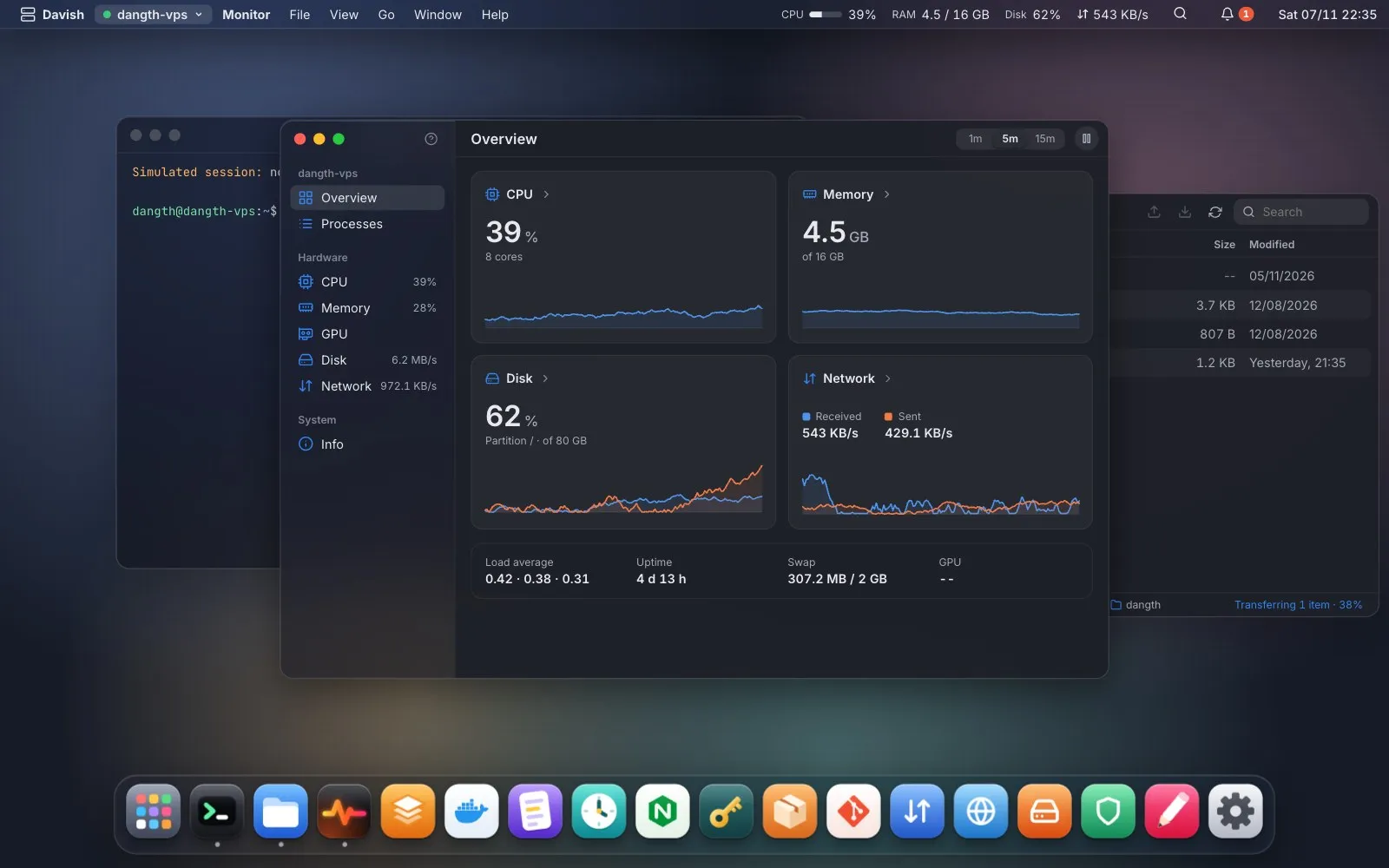
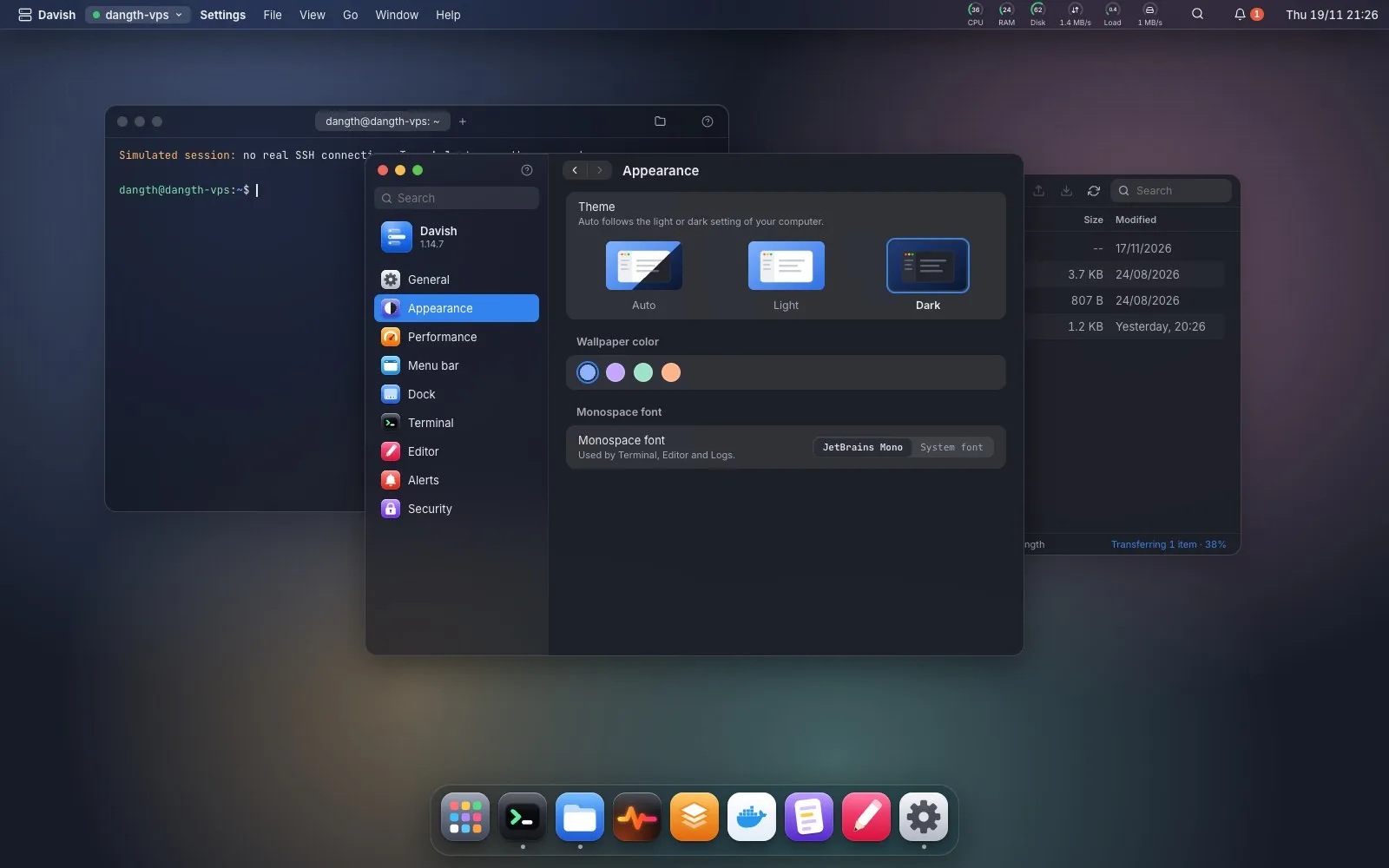
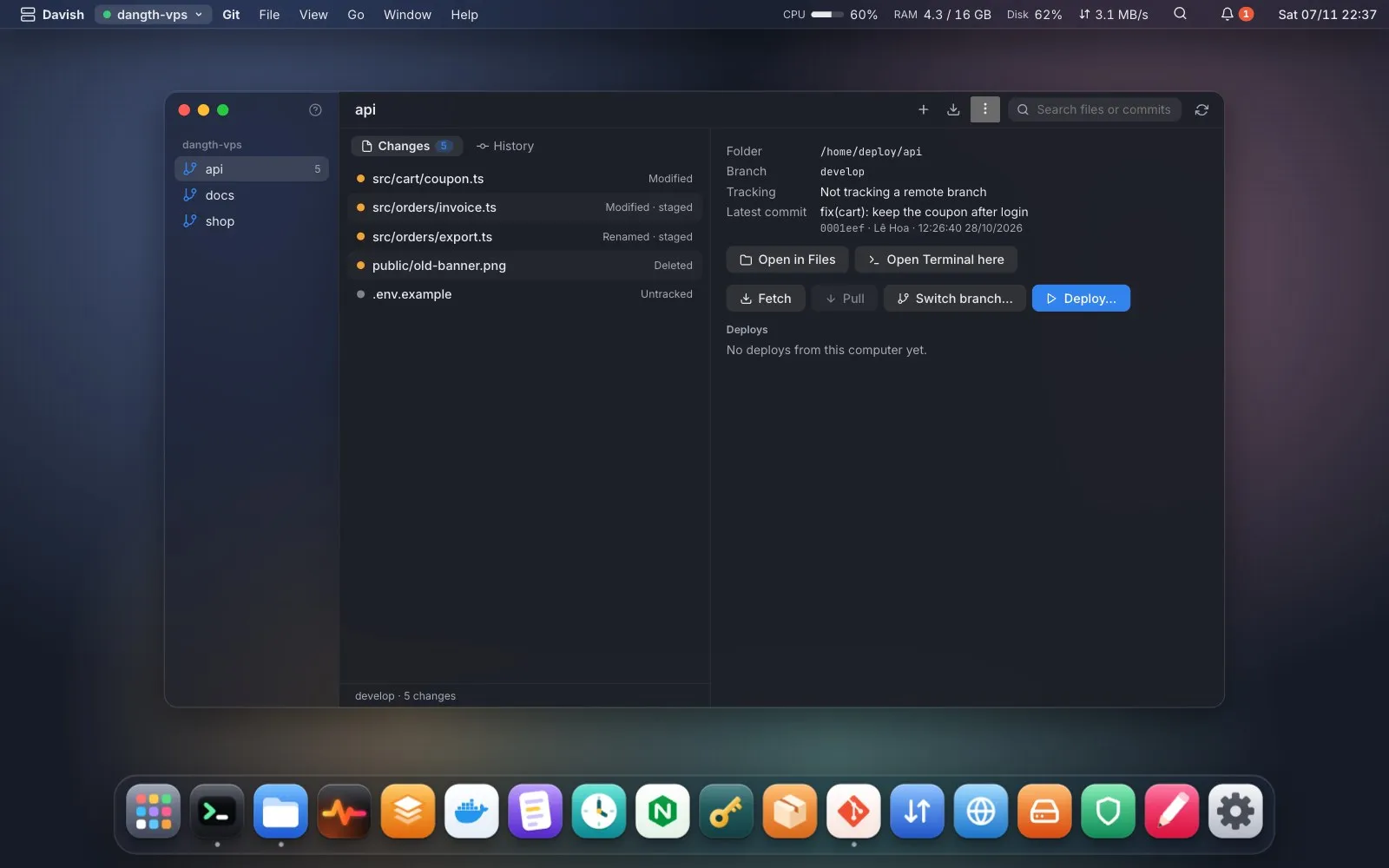
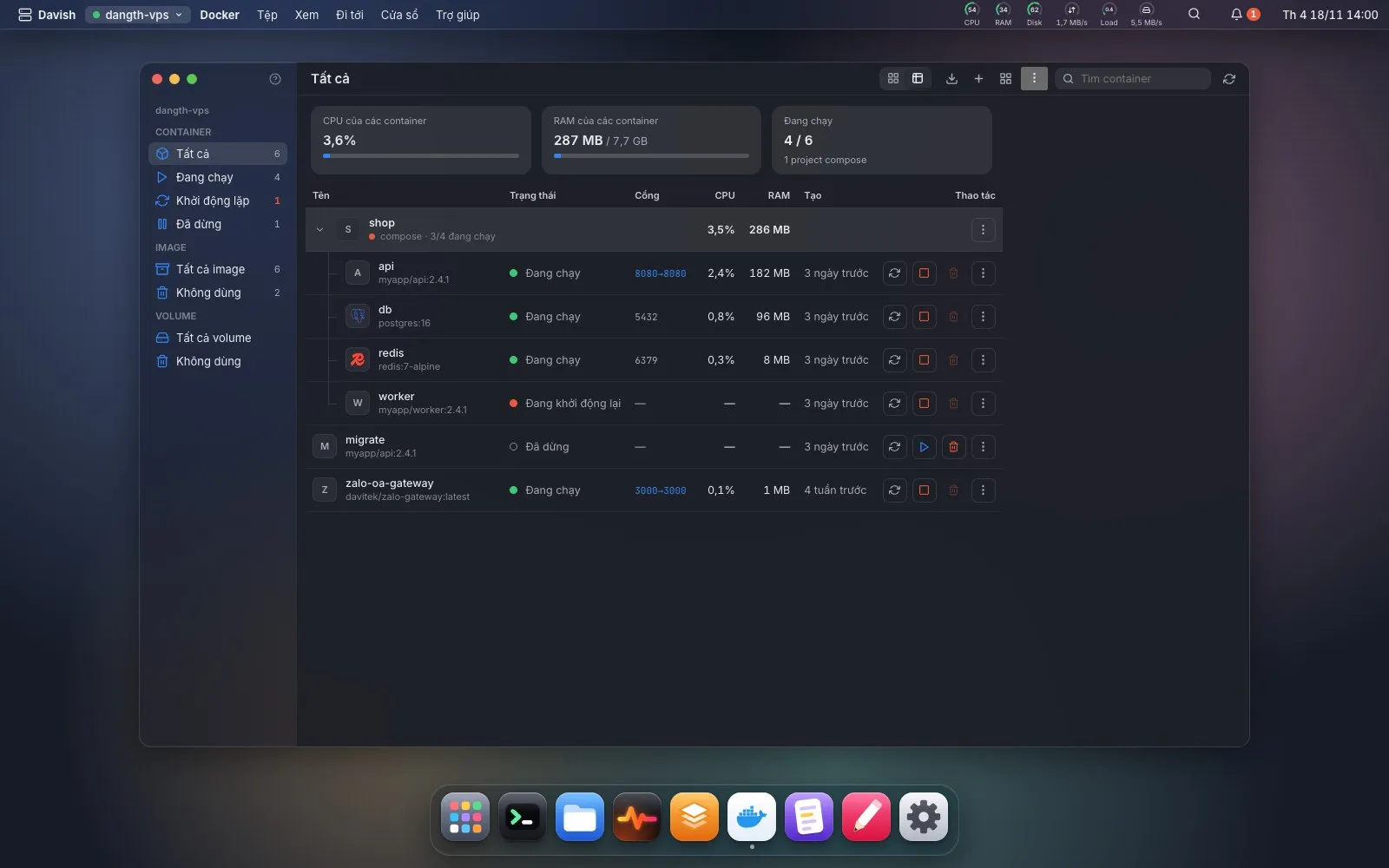
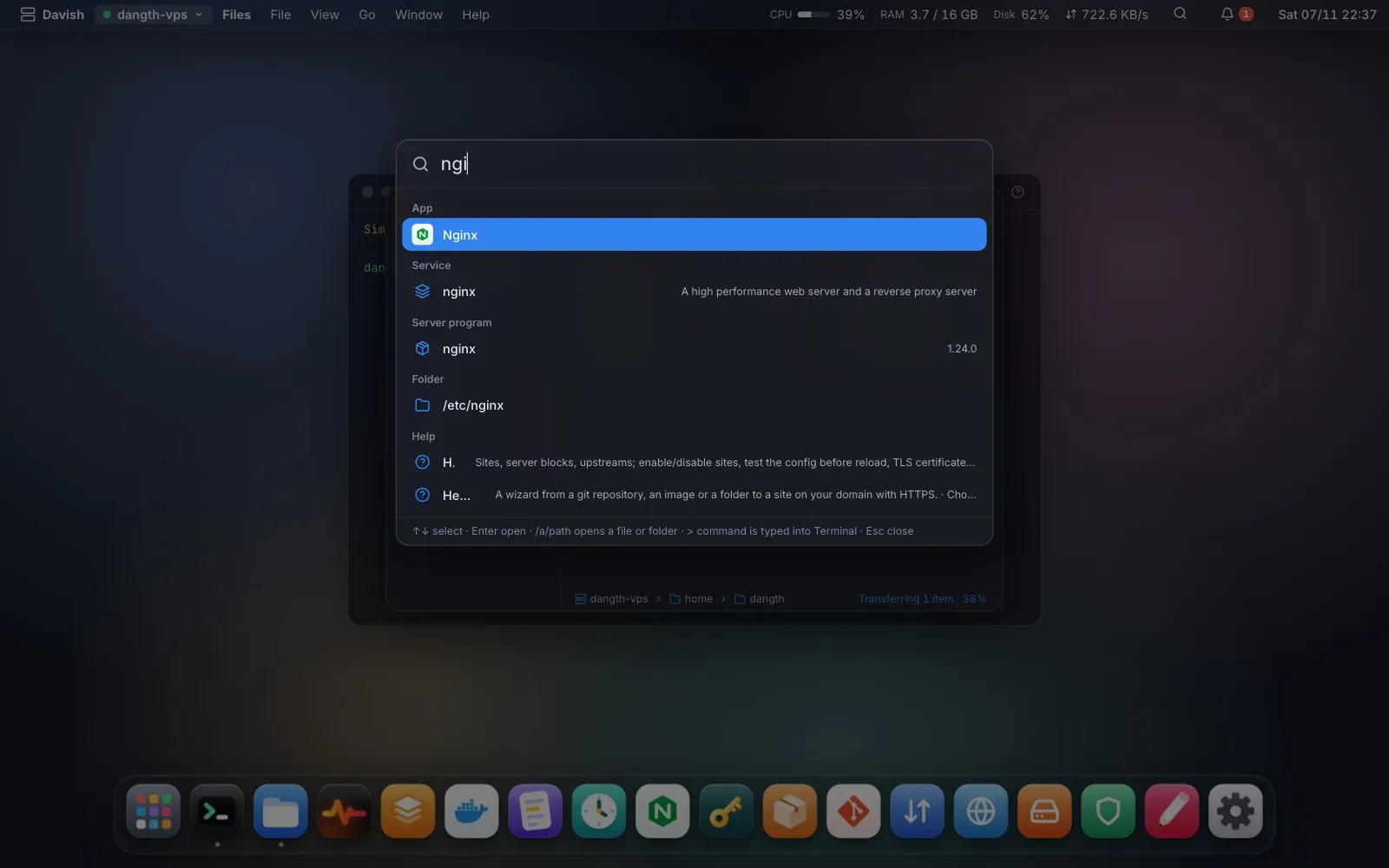
Davish comes in a light and a dark look. By default it follows your computer and switches when the system does; pick Light or Dark in Settings → Appearance → Theme to keep one. Terminal and Logs stay dark either way, and the wallpaper color you chose carries over, dimmed for the night.
Settings → Performance picks how much Davish spends on its own look: Beautiful (frosted glass), Balanced (no blur), Light (solid fills, short shadow, flat wallpaper, no motion), or Auto, which keeps the full look and suggests Light when this computer renders slowly. Advanced sets each effect on its own. Contributed by @tian2992.
The Dock sits at the bottom by default; Settings → Dock moves it to the left, right or top edge (windows keep clear of it, minimizing shrinks a window into its tile) and can drop its glass so only the icons float over the wallpaper.